
A guide for CSP-managed Microsoft 365 tenants
Why you might be seeing this
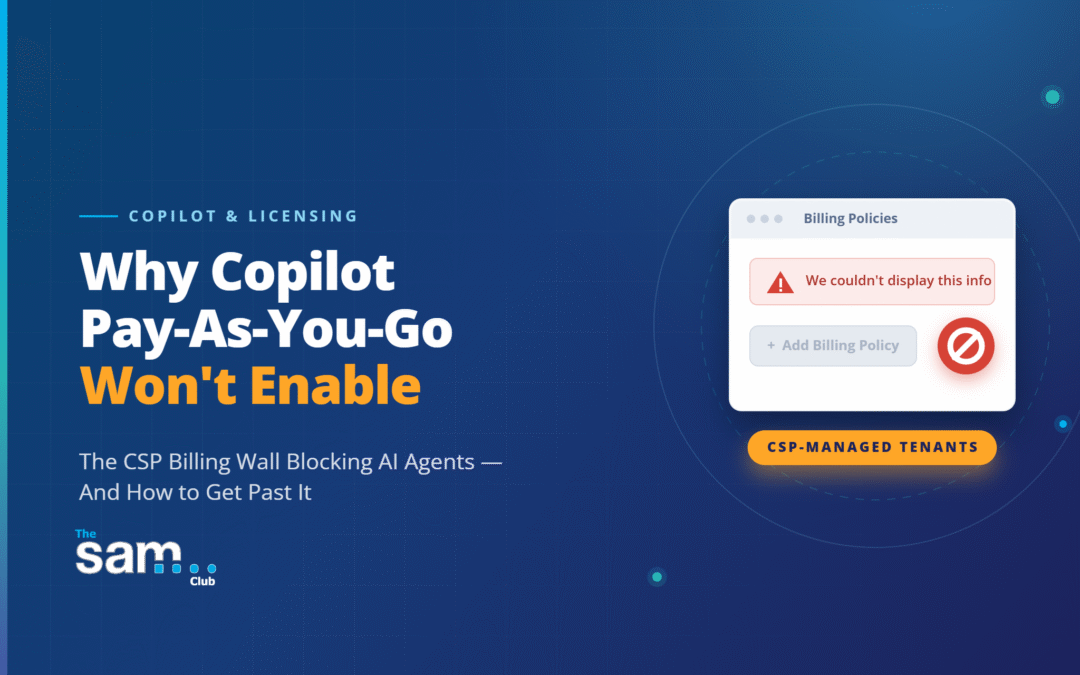
If you’ve tried to set up Microsoft Copilot pay-as-you-go (PAYG) billing — so that people without a full Copilot licence can still use an AI agent, for example a SharePoint agent that answers questions from your documents — you may have hit a wall in the Microsoft 365 Admin Centre: the Billing Policies page shows “We couldn’t display this info”, and the Add Billing Policy button is greyed out.
If that’s happened to you, it isn’t a fault with your account, your permissions, or anything you’ve done wrong. We’ve recently seen this behaviour in tenants managed through the CSP model, where Copilot billing needs to be associated with Azure billing arrangements that aren’t yet available within the tenant.
How to tell if this applies to you
You’re likely affected if any of the following sound familiar:
- You see the “We couldn’t display this info” error, or a disabled Add Billing Policy button, on the Billing Policies page.
- Copilot → Cost Management → Get Started can’t find an eligible Azure subscription, or tells you setup has to be completed by your solution provider.
- Your Billing Account Type (Billing → Your bills & payments → Billing accounts) shows as Microsoft Online Subscription Agreement (MOSA).
- You originally bought your Microsoft 365 licences through a reseller, rather than directly from Microsoft.
|
Not sure whether this applies to you? We’re happy to check. Let us know and we’ll confirm whether your tenant is affected — usually within a day — before anything else needs to happen. |
Why this happens
Copilot’s pay-as-you-go billing needs to attach to an Azure subscription that’s billed on a channel you control directly. On a CSP-managed tenant, all of your Microsoft billing — including Azure — runs through your reseller’s own agreement with Microsoft, rather than a channel you hold independently. The admin centre looks for a subscription on that direct channel, doesn’t find one, and blocks the page as a result. Existing Azure subscriptions have often not been eligible for selection because they weren’t associated with the billing channel Copilot expects for usage-based billing
In short: this is simply how CSP billing is structured, not a gap in your licensing or something misconfigured on your tenant — and it couldn’t be resolved solely from within the tenant by changing admin roles or permissions.
What needs to happen
In most CSP-managed environments we’ve reviewed, resolution has required action from the reseller, typically involving provisioning or associating an Azure subscription through the CSP relationship. In short, they need to provision an Azure subscription for your tenant through their own Partner Center, billed on their CSP channel, for the Copilot billing policy to attach to. Once that’s in place, whoever holds Billing Administrator (or AI Administrator) access on your tenant can complete the last step themselves — setting a monthly budget cap and per-user limits in Copilot → Cost Management — and pay-as-you-go access is live.
In the scenarios we’ve encountered, customers haven’t needed to establish a separate MCA billing relationship. The missing component has typically been an Azure subscription provisioned through the CSP arrangement. The agreement already in place as part of your CSP relationship covers it — what’s missing is simply the Azure subscription itself.
How we can help
This is exactly the kind of thing an independent view of your Microsoft licensing is useful for. If you’d like, we can:
- Confirm whether your tenant is genuinely affected by this, rather than something else producing a similar error.
- Put together the request to your reseller, setting out exactly what needs to be provisioned and why.
- Liaise with your reseller directly on your behalf, so you don’t have to chase this yourself.
- Talk you through the final configuration step once your reseller has their side in place.
Just let us know you’d like this checked, and we’ll take it from there.
Frequently asked questions
Do I need to set up a separate MCA billing account?
No. The agreement already in place as part of your CSP relationship covers this — what’s missing is simply the Azure subscription itself, which your reseller needs to provision.
Can I just create my own Azure subscription to get around this?
In the CSP-managed environments we’ve reviewed, subscriptions created independently of the CSP relationship have not appeared as valid options for Copilot billing. Where this occurs, the reseller normally needs to provision or associate the Azure subscription through the CSP arrangement.
Which admin role do I need?
You’ll need Billing Administrator, AI Administrator, or Global Administrator access to complete the final configuration once your reseller’s side is done. We’d recommend using Billing Administrator or AI Administrator for this day-to-day, rather than Global Administrator, for security reasons.
Is this a known, documented Microsoft limitation?
Not explicitly — Microsoft’s own setup documentation doesn’t call out CSP-managed tenants separately, which is why it can come as a surprise rather than a clearly signposted limitation. What’s set out here reflects how CSP and Azure billing channels are structured, and matches the fix partners have been using in practice.
What access does my reseller get when they set this up?
In many CSP-managed Azure subscriptions, the reseller is granted administrative access as part of the support model Microsoft provides for CSP partners. The exact permissions can vary depending on how the partner relationship has been configured. This is standard for every CSP-managed subscription — not something specific to this fix — and it’s how Microsoft’s CSP program is designed to let your reseller support you without needing separate credentials on your tenant.
You can see this yourself: in the Microsoft 365 admin centre, Settings → Partner relationships lists which partners hold delegated admin rights, and in the Azure portal, Access Control (IAM) → Role assignments on the subscription shows exactly who has Owner access.
Removing it is reversible and won’t cancel your licensing or your underlying reseller relationship — but it isn’t something to do casually, and we’d recommend talking to us or your reseller before changing it. It reduces your reseller’s ability to directly support that specific subscription, and can affect eligibility for Partner Earned Credit and other CSP incentive mechanisms, so removing it has a real cost to them even though it’s harmless to your own licensing. That matters here in particular because it’s the same subscription your Copilot billing now runs on. If you’d rather have this access scoped back than left as-is, we’re happy to advise on doing that safely.
Further reading
Set up Microsoft Copilot pay-as-you-go services — Microsoft Learn: https://learn.microsoft.com/en-us/microsoft-365/copilot/pay-as-you-go/setup
Understand your Microsoft business billing account — Microsoft Learn: https://learn.microsoft.com/en-us/microsoft-365/commerce/manage-billing-accounts
Manage subscriptions and resources under the Azure plan — Microsoft Learn: https://learn.microsoft.com/en-us/partner-center/customers/azure-plan-manage
Obtain a customer’s admin privileges — Microsoft Learn: https://learn.microsoft.com/en-us/partner-center/customers/customers-revoke-admin-privileges
Get started with your Microsoft Partner Agreement billing account — Microsoft Learn: https://learn.microsoft.com/en-us/azure/cost-management-billing/understand/mpa-overview
Partner earned credit troubleshooting guide — Microsoft Learn: https://learn.microsoft.com/en-us/partner-center/billing/partner-earned-credit-troubleshoot
Copilot Cowork Just Hit GA — and CSP-Managed Tenants Are Hitting a Billing Wall — CIAOPS: https://blog.ciaops.com/2026/06/23/copilot-cowork-just-hit-ga-and-csp-managed-tenants-are-hitting-a-billing-wall/